How to start using Claude Code for non-tech people
Learn how to use Claude Code, Opus 5.5 and skills to write articles, create social media content, prototype features and create product demo videos and promos
You already use Claude or ChatGPT every day. You paste in a draft, get a better draft back, copy it somewhere else, and repeat. Then you see people on social media posting landing pages, demo videos and 20 blog posts they made in an afternoon with Claude Code, and it looks like a different product.
Since Opus 5.5 came out, the feed has been full of posts like these: an animated short drawn in code, screenshots made automatically for every new feature, a landing page built in 5 minutes.
This guide is for product managers, designers, video editors and content writers who haven't opened it yet. No coding and no terminal needed to start. Each step ends with what you should have when it's done.
Web AI Chat vs Claude Code in 30 seconds
Claude Code is running on your computer and has an access to your system.
| | Web AI chat | Claude Code |
|---|---|---|
| Where it works | A browser tab | A folder on your computer |
| What you get back | Text you copy and paste | Real files: documents, images, videos, web pages |
| Context | What you paste into the message | Everything in the folder, plus notes you leave for it |
| Tools | Mostly none | Runs programs, browses the web, installs what it needs, records screen and make screenshots |
Step 1. Install the desktop app
Claude Code exists in 3 places: a terminal app, a desktop app and an extension for code editors like VS Code and Cursor. Many developers live in the terminal, but if you've never used one, start with the desktop app. It's the same Claude Code with buttons and a normal chat window.
The desktop app gives you a sidebar with your sessions, a folder picker and a normal message box. You can also open a preview, the changed files and a terminal as side panels when you need them.
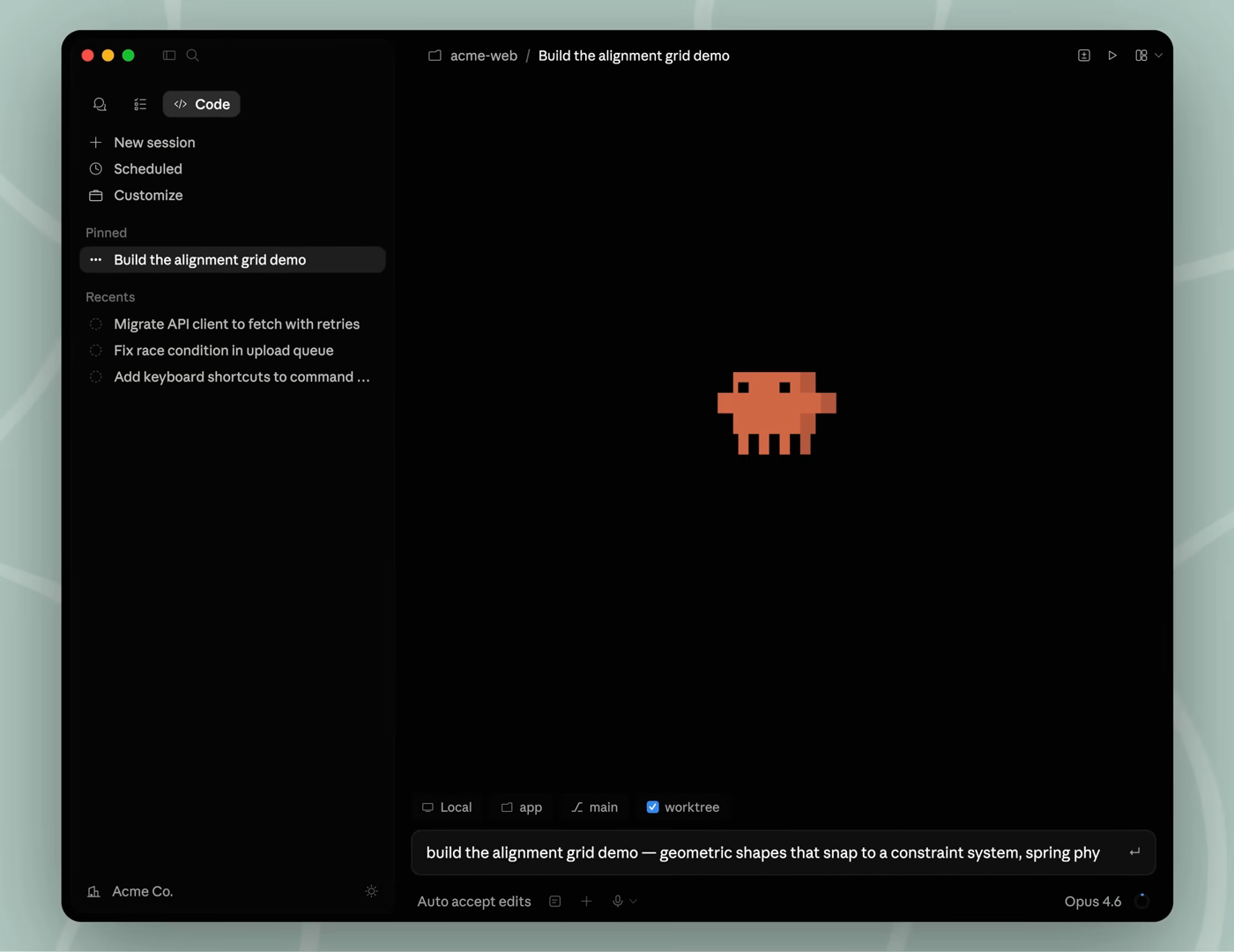
Install Claude Desktop:
1. Download the Claude desktop app from claude.ai/download for Mac or Windows
2. Sign in with your Claude account. Claude Code needs a paid plan: Pro is enough to learn, Max gives you more usage once you run it every day
3. Open the Code tab in the sidebar
Outcome: the desktop app is open on the Code tab and asks you to pick a folder.
Step 2. Create a folder for your work
Claude Code always works inside a folder. That folder is its desk: everything it reads and everything it makes lives there.
- Create a new folder, for example Documents/claude-work
- Drop in a few files you'd normally paste into a chat: a product brief, a brand guide, last month's blog posts, a couple of screenshots you like
- In the Code tab, choose that folder
Start with a fresh folder instead of your whole Documents or Desktop. Claude asks before it edits or deletes anything, but a small folder keeps it focused and keeps your other files out of the way.
Outcome: Claude Code is pointed at a folder that holds your knowledge base.
Step 3. Run your first task
Ask for a finished file, not an answer. That's the habit that changes everything.
The easiest way to start is with a link. You don't need to prepare any files: paste a website address and Claude opens the page, reads it and works from what's there. Try one of these with your own product or a competitor:
- "Read https://yourproduct.com and write 10 LinkedIn posts about it in posts.md, each with a different angle"
- "Compare the homepages of https://yourproduct.com and https://competitor.com . Write what they do better in review.md and draft a new hero section for us in hero.html"
- "Read our pricing page at https://yourproduct.com/pricing and write an FAQ with the 10 questions a buyer would ask before paying"
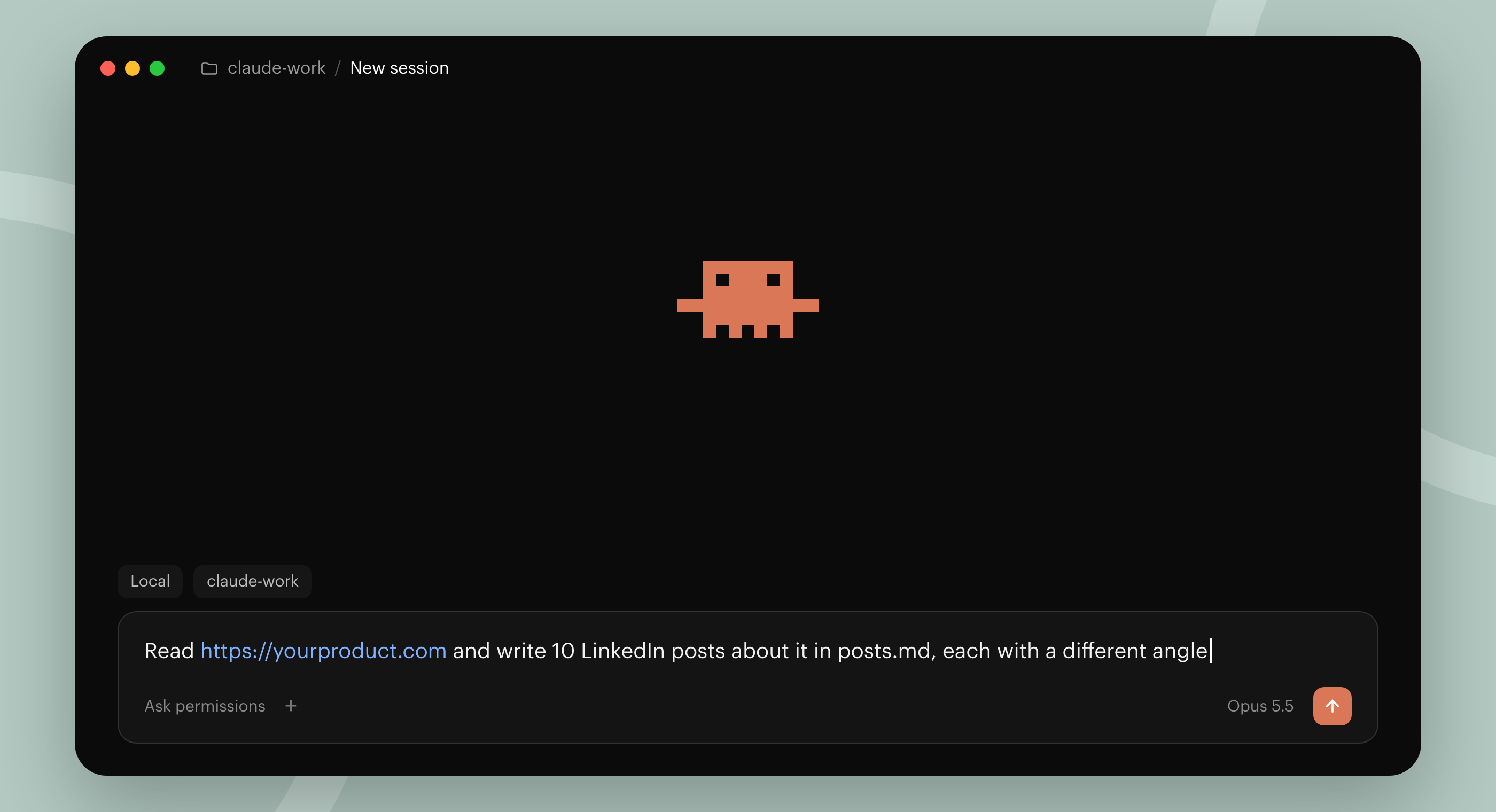
Once that works, move on to the files in your folder. Some use-cases:
- Customers research: "Read interviews and write insights.md with the top 5 user problems, 2 quotes for each and how often each came up"
- Design: "Look at hero-reference.png and build a landing page hero for our product from brief.md. Save it as hero.html so I can open it in the browser"
- Edit videos: "Take demo.mp4, cut the first 8 seconds, add captions from the audio and export a square version for LinkedIn"
- Write content: "Read the 3 posts in blog/ to learn our voice, then draft a new post about our pricing change in drafts/pricing.md"
While it works you'll see what it's doing: reading files, running tools, sometimes installing something it needs. When it wants to change a file or run a command, it asks. Read the request and click allow. If you're unsure, ask it "what will this do?" before you approve.
When it's done, open the file it made. Then give feedback the same way you'd give it to a teammate: "the headline is too long", "use our green, not blue", "the captions cover the logo". It edits the same file instead of starting from scratch.
Learn markdown.
You'll see ".md" extension a lot. It's a markup language really close to natural text. You'll need to learn to read these files to validate output.
Outcome: a real file in your folder that you can open, share or keep editing.
Step 4. Give it context once, not every time
In chat you re-explain your company every conversation. In Claude Code you write it down once.
Ask Claude: "Create a CLAUDE.md file in this folder with what you should know about me and my work. Ask me questions first." It will interview you and save the answers. Claude reads CLAUDE.md at the start of every session, so it remembers:
- Who you are and who the audience is
- Your product in 3 sentences
- Tone of voice and words you never use
- Brand colors and fonts
- Where things live in the folder
Whenever you correct Claude twice about the same thing, say "add this to CLAUDE.md". The file grows into a brief that gets better every week.
Outcome: Claude starts every task already knowing your product, audience and style.
Step 5. Install skills
A skill is a saved playbook for one kind of task. It's a folder with instructions (and sometimes scripts and examples) that teaches Claude how a pro would do the job: how to write a landing page, how to make an OpenGraph image, how to cut a launch video. Claude loads the right skill on its own when your request matches it.
Thousands of skills are shared for free on GitHub. A good first one for startup teams is marketingskills by Corey Haines: a set of skills for copywriting, landing pages, SEO, email sequences, pricing pages and launch plans.
You don't need to know how installing works. Paste this into Claude Code:
Install the skills from https://github.com/coreyhaines31/marketingskills so I can use them in every project
Claude downloads them and puts them in the right place. Start a new session, then try:
Use the copywriting skill to rewrite the homepage copy in homepage.md for our new audience of product managers
You can also type / in the message box to see every installed skill and pick one from the list.
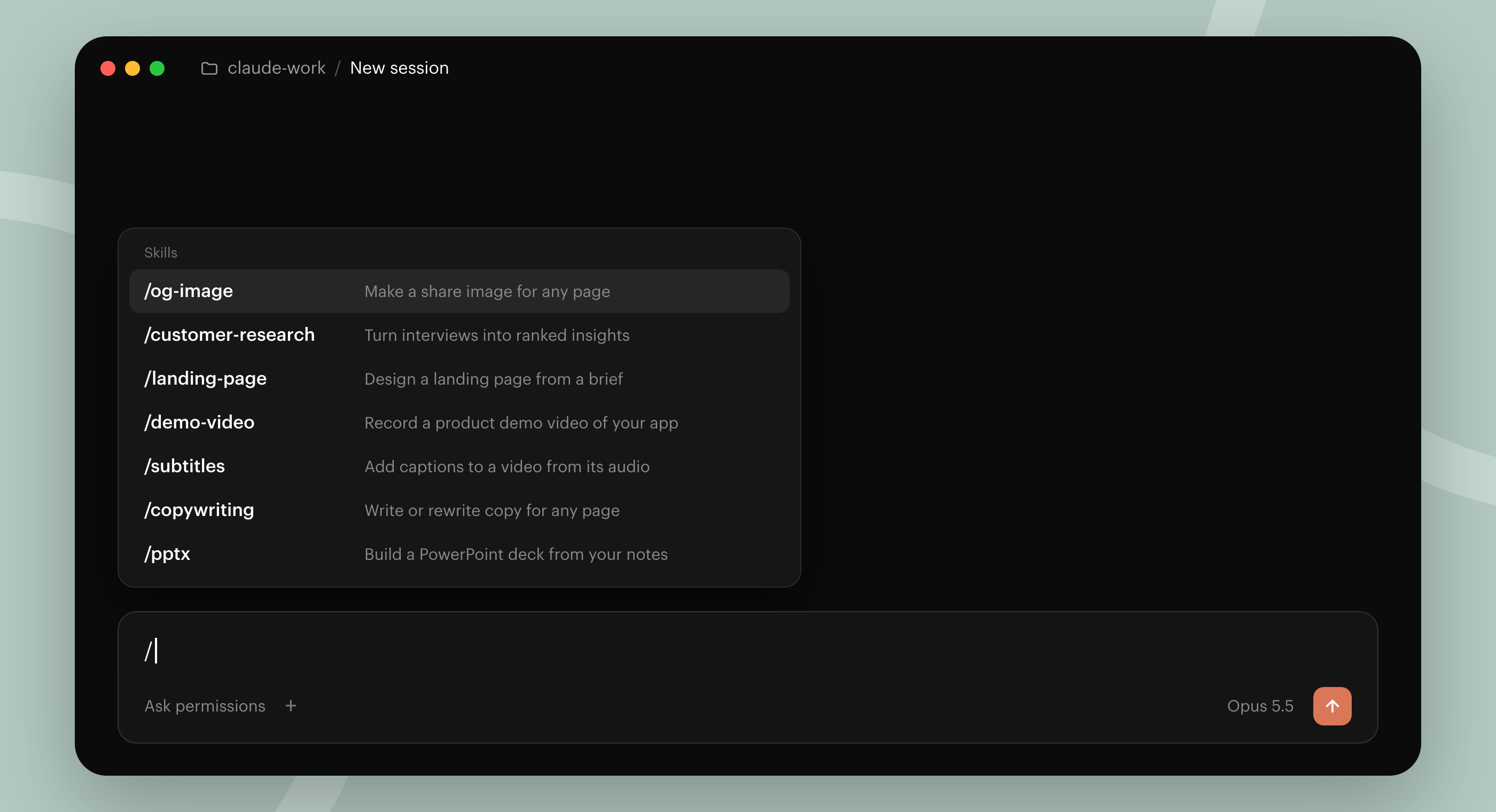
A few more worth looking at:
- Anthropic skills for Word, PowerPoint, Excel and PDF files, so Claude can hand you a real .docx or .pptx
- Video skills like Hyperframes or Remotion, which turn a script or a URL into a rendered MP4
- Your own skills. Once you've done a task well 3 times, ask: "turn what we just did into a skill called weekly-report". Next time, "make the weekly report" is the whole prompt
Intensive operations like creating images and videos take lots of time, so it's better to come up with the whole context upfront. Videos usually take 5-10 minutes, but can be up to 1 hour.
Outcome: Claude does specialist tasks the way a specialist would, and you have a library of your own repeatable workflows.
Step 6. Connect your tools with MCP
Your real context doesn't live in one folder. It sits in Notion docs, Google Drive, Slack threads, Linear tickets, Figma files and analytics dashboards. Copying it into the folder by hand is how most people lose an afternoon. MCP fixes that.
MCP (Model Context Protocol) is a standard way to plug Claude into other apps. Each app you connect is called a connector or an MCP server. Once it's connected, Claude can search and read that app on its own, and in some cases write back: create a ticket, update a doc, post a summary to Slack.
Most popular tools already have one: Notion, Google Drive, Gmail, Google Calendar, Slack, Linear, Jira, Figma, HubSpot, PostHog and many more.
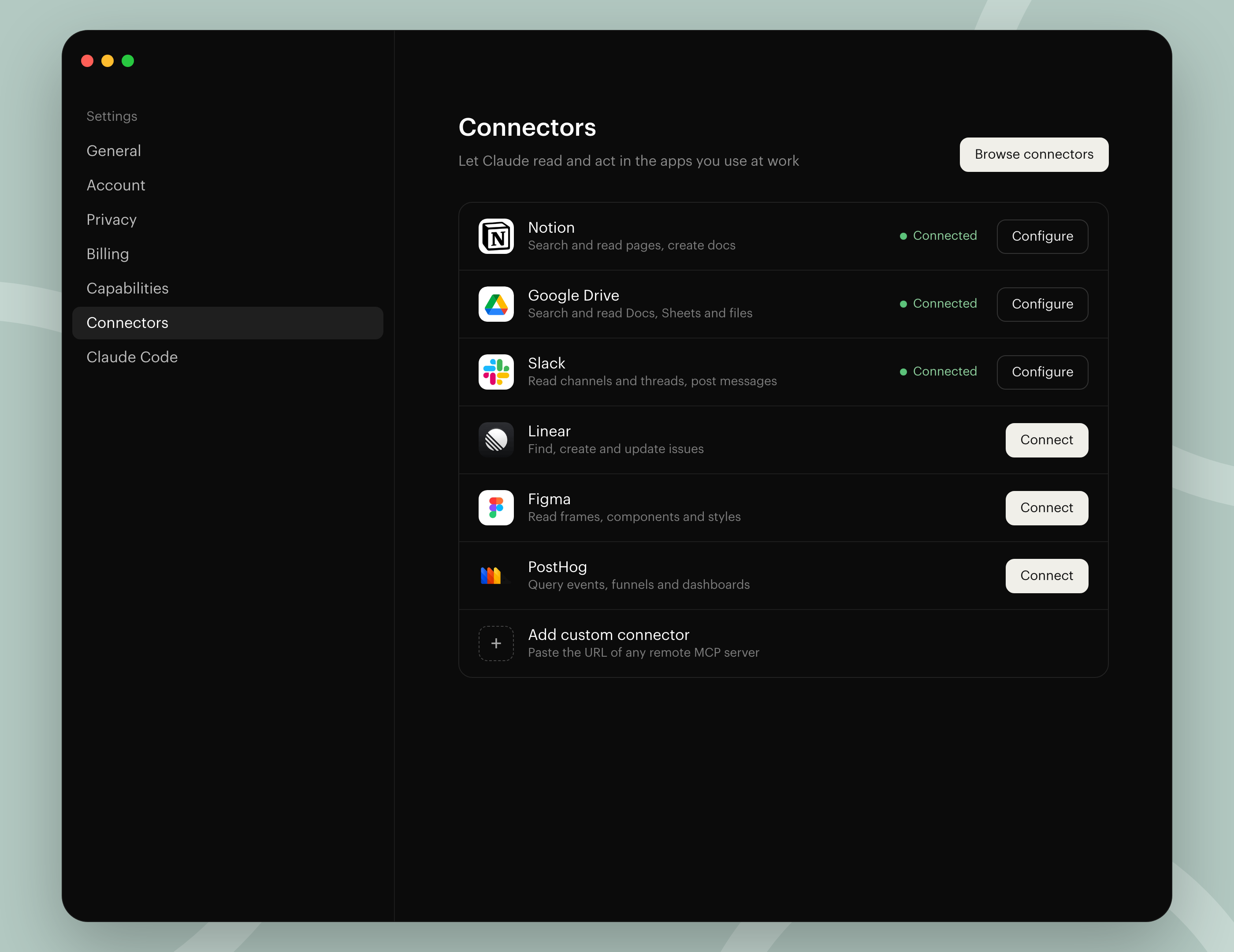
Connect MCP:
1. In the Claude app, open Settings, then Connectors
2. Pick the tools you use every day and sign in to each one. Connectors you add here also work in Claude Code
3. In a Claude Code session, type /mcp to see what's connected and sign in to anything that still needs it
4. If a tool isn't in the list, search for "\[tool name\] MCP server", paste the link into Claude Code and ask it to add the server for you
Then reference those tools in your prompts the same way you'd reference a file:
- Analyse tickets: "Read the last 30 days of support tickets in Linear and the churn interviews in our Notion research page, then write a ranked problem list in problems.md"
- Design: "Open the onboarding frame in this Figma link and build it as a working page with our real components and colors"
- Edit video "Pull the transcript and notes for the launch video from the Google Drive folder and write a shot list with timings"
- Write content: "Find the 3 most discussed feature requests in the #feedback Slack channel this month and draft a post that answers them"
The difference in output is huge. A post drafted from real customer quotes and real numbers reads like it was written by someone on the team, because it was built from the same material the team uses.
Connect only what the task needs, and check what each connector is allowed to do. Claude asks before it takes an action in another app, the same way it asks before editing a file. Read those requests carefully, especially anything that sends, posts or deletes.
Outcome: Claude works from your team's live docs, tickets and conversations instead of whatever you remembered to paste in.
Step 7. Avoid AI slop
The posts you see on social media hide the part that makes the output good: the person steering it. Claude Code without direction produces the same generic copy and purple-gradient pages as any chat. A few rules keep it sharp.
Outcome: output that sounds like you and looks like your brand, not like every other AI post.
What a solid week with Claude Code looks like
Once the basics work, the jobs start to stack:
- Product manager: connects Jira/Linear PostHog MCP, create interactive prototype from a ticket and passes it to a dev, write better ticket descriptions with acceptance criteria, writes changelog with a demo, ask questions about analytics
- Designer: turns a Figma screenshot and the brand guide into a working landing page, a set of social cards and an OpenGraph image in the site's own fonts, designs new features via prototype and handoffs link on vercel, not figma
- Video editor: gets rough cuts, captions, resized versions for every platform, 15 second promo built from the product's real UI, generates animated b-rolls
- Content writer: researches a topic, drafts the post in the house voice, writes 5 social posts from it and generates the cover image, write article with nice images
None of this needs code from you. It needs clear briefs, good references and the patience to give feedback 2 or 3 times.
Build a habit
Learning Claude Code requires time and many iterations. You probably won't get it right away, something won't work, so plan several weeks of learning.
Your goal is top open Claude Code in your daily work more and more every day, until it clicks and you won't imagine your work without it.
Cheat sheet
- Install the Claude desktop app and open the Code tab
- Make a folder, fill it with the material for your task and point Claude at it
- Ask for a finished file, then give feedback like you would to a teammate
- Write a CLAUDE.md so it remembers who you are
- Install skills for the jobs you do most, and turn your own routines into skills
- Connect Notion, Drive, Slack, Figma and your other tools through MCP so Claude can pull real context
- Bring context and references every time, plan big tasks first and review before you ship
Ship faster than
your competition
Focus on customers and sales while we handle product delivery. Hire a dedicated AI maker or a whole product team.
Launch new products
Fix your delivery
Hit fundraising milestones
[Analytics Chart]
Wireframe v0.1
Sarah Chen CEO, Founder
$127k
MRR
2,847
Customers
+23%
Growth
Sales Performance
Latest Deal
Enterprise plan closed
Acme Corp · $12k/mo


Industries
AI Tools
Resources
Our products


'%3e%3cpath%20fill-rule='evenodd'%20clip-rule='evenodd'%20d='M2500%201250C2500%201940.36%201940.36%202500%201250%202500C559.644%202500%200%201940.36%200%201250C0%20559.644%20559.644%200%201250%200C1940.36%200%202500%20559.644%202500%201250ZM1030.7%20697.9C986.2%20688.4%20937%20683.6%20883.1%20683.6H350V1816.5H899.1C949.1%201816.6%20999%201810.2%201047.4%201797.5C1095.5%201784.8%201138.3%201765.3%201175.9%201738.8C1213.5%201712.4%201243.4%201678.3%201265.6%201636.5C1287.8%201594.7%201298.9%201545.2%201298.9%201488.1C1298.9%201417.2%201281.7%201356.6%201247.3%201306.4C1212.9%201256.2%201160.8%201221%201091%201200.9C1141.7%201176.6%201180.1%201145.4%201206%201107.3C1231.9%201069.2%201244.9%201021.6%201244.9%20964.5C1244.9%20911.6%201236.2%20867.2%201218.7%20831.2C1201.2%20795.2%201176.6%20766.4%201144.9%20744.7C1113.2%20723%201075.2%20707.4%201030.7%20697.9ZM960.9%201110.4C932.3%201131.5%20895.8%201142.1%20851.4%201142.1L599.2%201142.3V877.3H832.3C853.9%20877.2%20875.4%20879.1%20896.6%20882.8C917.2%20886.5%20935.4%20893.1%20951.3%20902.6C967.2%20912.1%20979.9%20925.4%20989.4%20942.3C998.9%20959.2%201003.7%20980.9%201003.7%201007.3C1003.8%201054.9%20989.5%201089.2%20960.9%201110.4ZM935.5%201615.7C912.6%201620.5%20889.2%201622.9%20865.7%201622.8L599.2%201622.9V1311.9H870.5C924.4%201311.9%20967.8%201324.3%201000.6%201349.2C1033.4%201374%201049.8%201415.6%201049.8%201473.7C1049.8%201503.3%201044.7%201527.7%201034.7%201546.7C1024.6%201565.7%201011.1%201580.8%20994.2%201591.9C977.3%201603%20957.7%201610.9%20935.5%201615.7ZM1758.3%201648.2C1694.8%201648.2%201646.1%201631.8%201612.3%201599C1578.5%201566.3%201560%201513.4%201556.9%201440.7H2148.7C2152.9%201377.2%202147.6%201316.4%202132.8%201258.2C2118%201200%202093.9%201148.2%202060.6%201102.7C2027.3%201057.2%201984.7%201021%201932.9%20994C1881%20967%201820.2%20953.5%201750.4%20953.5C1688%20953.5%201631.1%20964.6%201579.8%20986.8C1528.5%201009%201484.3%201039.4%201447.3%201078C1410.3%201116.6%201381.7%201162.3%201361.6%201215.2C1341.5%201268.1%201331.5%201325.2%201331.5%201386.5C1331.5%201449.9%201341.3%201508.1%201360.8%201561C1380.3%201613.9%201408.1%201659.3%201444.1%201697.4C1480.1%201735.5%201524%201764.9%201575.8%201785.5C1627.6%201806.1%201685.8%201816.4%201750.3%201816.4C1843.4%201816.4%201922.7%201795.2%201988.3%201752.9C2053.9%201710.6%202102.6%201640.3%202134.3%201541.9H1936C1928.6%201567.3%201908.5%201591.4%201875.7%201614.1C1842.9%201636.8%201803.8%201648.2%201758.3%201648.2ZM1744%201123.1C1799%201123.1%201840%201137.9%201867%201167.5C1893.9%201197.1%201912.7%201240.5%201923.4%201297.5H1556.9C1557.9%201281.7%201561.4%201263.7%201567.2%201243.6C1573%201223.5%201583%201204.5%201597.3%201186.5C1611.6%201168.5%201630.6%201153.5%201654.4%201141.3C1678.1%201129.2%201708%201123.1%201744%201123.1ZM1976.2%20741.1H1518.3V868.1H1976.2V741.1Z'%20fill='white'/%3e%3c/g%3e%3cdefs%3e%3cclipPath%20id='clip0_52_236'%3e%3crect%20width='2500'%20height='2500'%20fill='white'/%3e%3c/clipPath%3e%3c/defs%3e%3c/svg%3e)
'%3e%3cpath%20d='M444.031%20372.208C477.51%20456.911%20502.37%20544.115%20518.526%20633.203C541.573%20619.151%20563.115%20602.266%20582.693%20582.693C633.547%20531.833%20666.365%20467.75%20677.958%20398.198C628%20377.531%20573.286%20366.094%20515.948%20366.094C491.438%20366.094%20467.417%20368.208%20444.031%20372.208V372.208Z'%20fill='white'/%3e%3cpath%20d='M582.979%20100.266C582.88%20100.172%20582.786%20100.068%20582.693%2099.974C518.219%2035.5052%20432.505%20-7.62939e-06%20341.333%20-7.62939e-06C305.682%20-7.62939e-06%20270.865%205.45312%20237.828%2015.9219C290.781%2082.2656%20337.365%20153.068%20377.286%20227.896C452.495%20195.964%20521.771%20152.698%20582.979%20100.266Z'%20fill='white'/%3e%3cpath%20d='M609.797%20130.479C545.589%20185.63%20473.839%20230.323%20395.761%20263.724C407.271%20286.896%20418.141%20310.437%20428.401%20334.328C457.052%20328.875%20486.287%20326.094%20515.948%20326.094C573.401%20326.094%20629.282%20336.427%20682.308%20356.766C682.537%20351.641%20682.667%20346.5%20682.667%20341.339C682.667%20263.88%20657.032%20190.375%20609.797%20130.479V130.479Z'%20fill='white'/%3e%3cpath%20d='M131.234%20610.401C190.99%20657.255%20264.208%20682.667%20341.333%20682.667C390.354%20682.667%20437.792%20672.385%20481.203%20652.875C464.932%20558.594%20438.88%20467.625%20404.12%20381.047C283.323%20414.016%20183.802%20499.026%20131.234%20610.401V610.401Z'%20fill='white'/%3e%3cpath%20d='M334.88%20362.656C352.438%20355.229%20370.333%20348.938%20388.51%20343.76C378.917%20321.792%20368.74%20300.135%20358.031%20278.786C265.818%20313.026%20168.854%20330.375%2069.25%20330.375C46.1094%20330.375%2023.1198%20329.422%200.296875%20327.557C0.114583%20332.135%200%20336.729%200%20341.339C0%20432.51%2035.5052%20518.224%2099.974%20582.693C99.9948%20582.714%20100.021%20582.734%20100.042%20582.755C122.339%20538.286%20151.5%20497.87%20187.031%20462.333C229.745%20419.625%20279.484%20386.089%20334.88%20362.656Z'%20fill='white'/%3e%3cpath%20d='M339.323%20242.859C298.818%20167.844%20251.427%2097.0677%20198.016%2031.3698C162.021%2048.0417%20128.859%2071.0885%2099.974%2099.974C48.3281%20151.62%2015.2917%20216.906%204.1875%20287.708C25.6458%20289.464%2047.3438%20290.375%2069.25%20290.375C164.052%20290.375%20255.016%20273.594%20339.323%20242.859Z'%20fill='white'/%3e%3c/g%3e%3cdefs%3e%3cclipPath%20id='clip0_107_362'%3e%3crect%20width='682.667'%20height='682.667'%20fill='white'/%3e%3c/clipPath%3e%3c/defs%3e%3c/svg%3e)
© 2026 Paralect, Inc 651 N Broad St, Suite 206, Middletown, 19709, Delaware, United States